
How to Use LiDAR on Your iPhone (and Why It Matters in 2025)

If you own a recent iPhone Pro model – you might be sitting on a powerful tool that many people ignore: the LiDAR scanner. Once reserved for self-driving cars and mapping drones, LiDAR (Light Detection and Ranging) is now baked right into select iPhones – helping you measure rooms, improve photography, build 3D scans, and more. In this guide, we’ll walk you through how to use it, what it’s good for, what its limits are – and how to get the best results.
What is LiDAR (on iPhone)?
LiDAR stands for Light Detection and Ranging. In essence, it works by sending out pulses of (invisible) infrared light, then measuring how long it takes for the light to bounce back from surfaces. Based on that “time of flight,” it constructs a depth map of the surrounding environment – building a 3D understanding of space.
On devices like the iPhone, this process happens extremely quickly (hundreds of thousands of pulses per second), allowing near-real-time depth sensing – perfect for augmented reality (AR), depth-aware photos, or room measurements.
Unlike older “software-only” depth or focus tricks, LiDAR isn’t guessing – it physically measures distance. That means better accuracy and consistency (though with caveats – we’ll get to those).
Which iPhones (and iPads) Have LiDAR?
Not every Apple device supports LiDAR. As of 2025, LiDAR is included only in the “Pro” iPhones and recent Pro iPads. According to several up-to-date guides:
| Device Line | LiDAR Included? | Notes |
| iPhone 14 Pro / 14 Pro Max | Yes | First-generation LiDAR inherited from earlier models. |
| iPhone 15 Pro / 15 Pro Max | Yes | Improved low-light depth performance. |
| iPhone 16 Pro / 16 Pro Max | Yes | More efficient sensor fusion for AR. |
| iPhone 17 Pro / 17 Pro Max | Yes | Latest iteration; optimized for visionOS interoperability. |
| Standard iPhone 14 / 15 / 16 / 17 (non-Pro) | No | Still supports AR via camera-based depth estimation. |
| iPad Pro 11″ (2nd gen and later) | Yes | Strong performance; often used for pro-level 3D scanning apps. |
| Apple Vision Pro | Yes | Uses LiDAR for spatial mapping, environment meshing, accurate mixed-reality occlusion, and hand-tracking. |
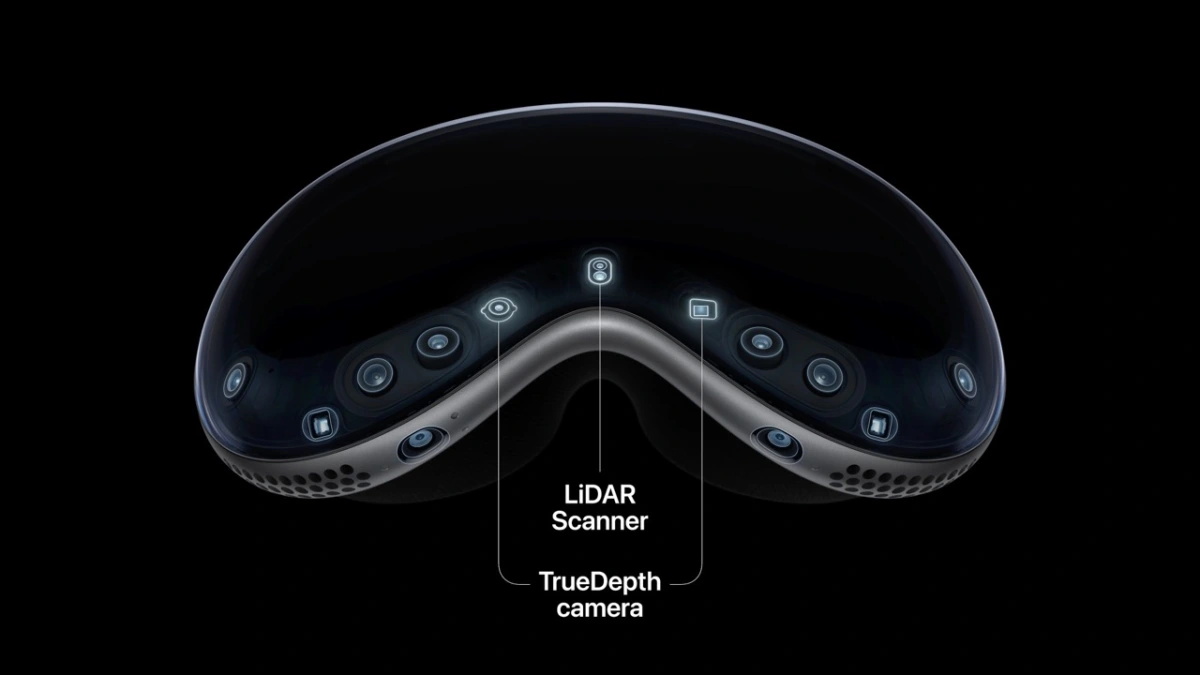
If your iPhone doesn’t have a LiDAR scanner, many features (e.g. augmented reality, simplified measurement) still work – but you lose the depth-sensor advantage.
How to Use LiDAR on Your iPhone
LiDAR doesn’t require a special “switch.” Instead, it powers certain functionality behind the scenes. Below are the most useful workflows today.
1. Measure Spaces & Objects – Use the built-in Measure App
One of the easiest and most practical ways to leverage LiDAR is by using the built-in Measure app. With LiDAR, the app becomes far more precise and responsive.
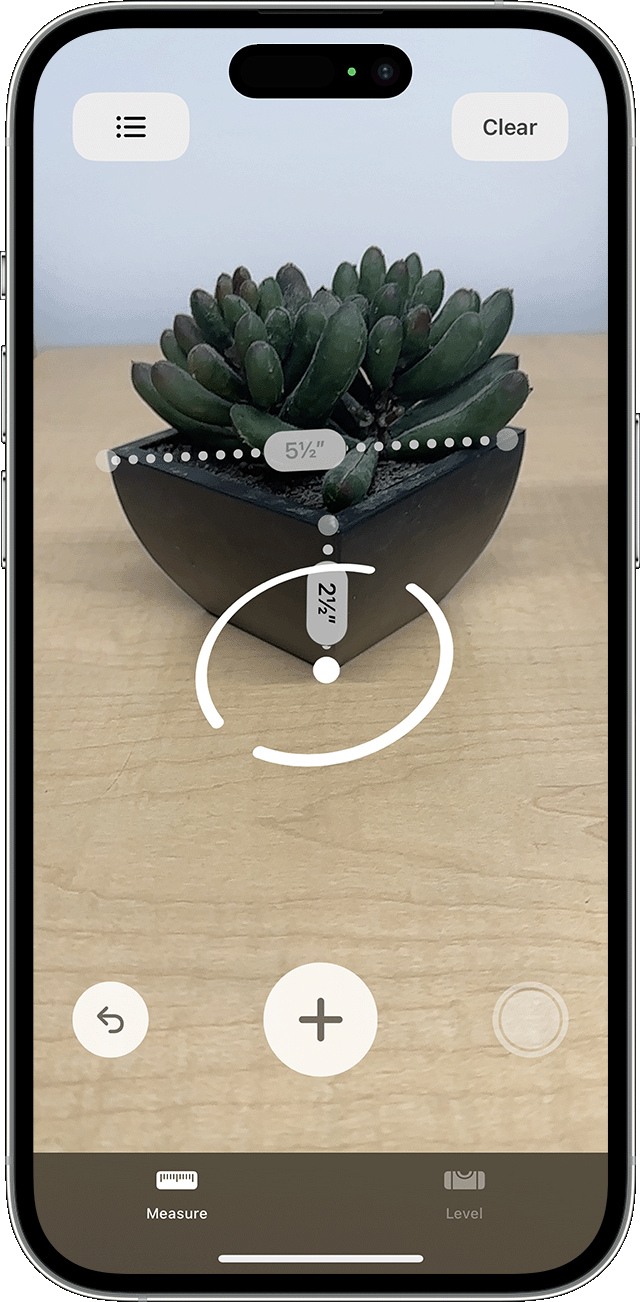
How to measure:
- Open the Measure app.
- Move your phone until a circle (with a dot) appears.
- Point the dot at one end or corner of the object or space.
- Wait a moment – a yellow guide line may snap to edges if they are straight.
- Move to the other end, tap again – the app shows the measurement.
You can measure doors, windows, furniture, or even entire rooms this way. Great for interior design, furniture shopping, or quick DIY measurements.
2. 3D Scanning & Room / Object Capture – via Third-Party Apps
For more advanced scanning (e.g. exporting 3D models of rooms or objects), third-party apps can tap into LiDAR to produce meshes or point-clouds.
Examples of uses: home renovation planning, real estate floorplans, scanning objects for 3D printing, preserving personal spaces, or even creative 3D art. Some of these apps allow export in formats like OBJ, STL, or USDZ for further editing or use in 3D tools.
Tips for better scans:
- Move your iPhone slowly and steadily around the object or room.
- Try to cover all angles – walls, corners, ceilings, and floor.
- Avoid overly dark or extremely shiny surfaces (they can confuse the lidar sensor).
- Provide enough ambient light – while LiDAR works in darkness, good lighting helps the accompanying camera for texture and color info.
3. Better Photography: Low-Light, Portrait Mode, Autofocus Boost
LiDAR isn’t just for measurement or AR – it improves everyday photography. On LiDAR-equipped iPhones, the system can use depth information to speed up autofocus even in low light, improving shot sharpness and reducing blurriness.
Also, for Portrait Mode or night-time shots, LiDAR’s depth data helps the camera better understand what is subject vs. background – delivering more natural bokeh, accurate subject separation, and improved low-light focus.
4. Augmented Reality (AR), Virtual Furniture, Design, and More
Because LiDAR gives the iPhone a real-time 3D view of its environment, AR apps can anchor virtual objects more accurately in physical space. This lets you, for example, place virtual furniture in your room, preview how home decor would look before buying it, or experience immersive AR games that interact realistically with your surroundings.
Performance & Real-World Limitations – What LiDAR Can and Cannot Do (Yet)
LiDAR on iPhone is powerful – but it has limits. Unlike marketing hype, this isn’t a “laser scanner = perfect 3D scanner.” It’s more like a consumer-grade depth sensor. Being aware of its strengths and limitations will save you frustrations.
| Benefit | Constraints / What to watch out for |
| Quick measurements (rooms, furniture, walls) | Accuracy may degrade at long distances or complex geometry (thin edges, glass, transparent surfaces) |
| Faster autofocus & improved low-light photos | Depth-based focus works best with enough ambient light and distinct surfaces; very dark, featureless scenes may still struggle |
| 3D scanning & AR environment mapping | Meshes or models may be low resolution compared to professional lidar or photogrammetry, and detailed scans (e.g. for small objects) might lack clarity |
| Real-time, on-device computation (no external hardware) | For high-precision use cases (engineering, surveying, architecture), accuracy may not suffice – treat as “approximate.” |
Important context & caveats:
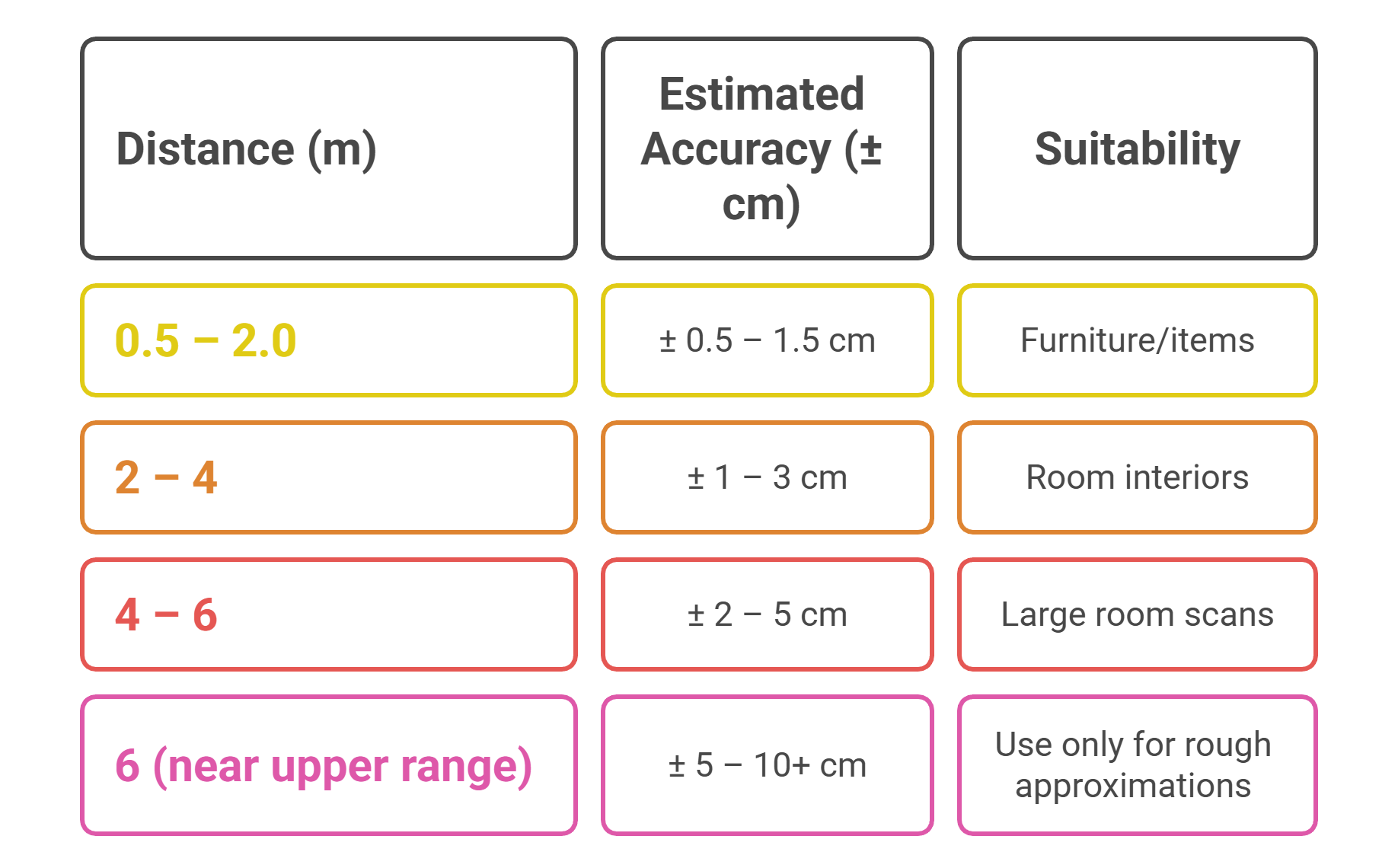
- There’s no official “LiDAR spec sheet” from Apple that promises a fixed meter-accurate precision or maximum point-density for iPhone LiDAR – so any “accuracy claims” are approximate and dependent on lighting, surface, and how well you scan.
- Some user reports and independent anecdotal tests indicate small measurement errors – e.g., measuring a TV width resulting in values differing by 1–2 cm.
- Transparent, reflective or very dark surfaces can confuse the scanner; very fine details or thin objects (like thin cables, glass panes, or small statues) may not register reliably.
Because of these, think of iPhone LiDAR as a smart consumer-level tool – great for quick jobs, rough room scans, AR interaction, photography enhancement – but not as a substitute for precision surveying tools or professional 3D laser scans.
Tips & Best Practices – Get the Most Out of iPhone LiDAR
If you want reliable results with LiDAR on iPhone, use these practices:
- Good lighting helps – while LiDAR doesn’t need visible light, the camera sensor benefits from ambient light, especially for textured surfaces or detailed scans.
- Scan slowly and steadily – avoid sudden movements; smooth, sweeping motions yield more accurate depth maps.
- Cover all angles – especially for room scans: walls, floor, ceiling, corners. Overlapping coverage helps the software build better meshes.
- Avoid tricky surfaces – glass, mirrors, shiny metals, or very dark materials may reflect or absorb IR pulses unpredictably.
- Cross-check critical measurements – for furniture placement, home renovation, or anything requiring precision – consider a backup (tape measure, ruler) if < 1 cm accuracy matters.
- Use dedicated apps when needed – AR apps, 3D-scanning apps (rather than just Measure) produce better meshes, export formats, and editing flexibility.
Emerging & “Pro” Use Cases
Though iPhone LiDAR is a consumer-level sensor, developers and tech-savvy users are pushing its use into more advanced realms:
- Background removal / video compositing. Recent research has shown that LiDAR depth maps from devices like the iPhone 15 Pro Max can be integrated with GPU-based image processing pipelines to perform real-time background removal – a promising alternative to chroma-keying or AI-based segmentation.
- Depth-guided image processing. For example, new methods use LiDAR depth data to improve deblurring of smartphone images (helpful for shaky hands or low-light blur).
- Rapid prototyping & 3D printing. Hobbyists and creators can capture real-world objects and export them as 3D meshes for printing, modeling, or design.
- Interior design, renovation planning, real estate. With quick room scans, you can draft floorplans, visualize furniture placement, and communicate ideas – all with a device in your pocket.
That said: all these use cases still trade off precision vs convenience. For work requiring millimeter-level accuracy or certified measurements (architecture, construction, surveying), a dedicated laser scanner remains the standard.
Where LiDAR on iPhone Needs Better Documentation (and What You Should Know)
Despite its usefulness, LiDAR on iPhone suffers from a few systematic gaps – even as of 2025:
- No official “spec sheet” from Apple about detection range, point density, or guaranteed accuracy margins under real-world conditions. That means no universal guarantee of ±1 cm across all use cases.
- Lack of standardized benchmarks for different use cases (room scanning, object scanning, long-range measurement). Existing results vary by surface, lighting, and scanning method.
- Little guidance on failure modes & troubleshooting – very few articles address when LiDAR fails (e.g. reflective surfaces, outdoors in bright sun, transparent objects), or how to mitigate issues.
- Scant documentation on privacy/data handling – what happens to scans/data captured by third-party apps? Are they stored locally, transmitted, or shared? For sensitive uses (e.g. home layouts), that matters.
- Few “recipes” or workflows for developers / advanced users – while some early research shows promising applications (background removal, depth-guided editing), there is no consolidated guide or “cookbook” for developers to follow.
- No broad comparison of LiDAR-enabled apps – formats, export options, subscription models, accuracy trade-offs; consumers have to test and choose themselves.
As a user, it’s helpful to approach iPhone LiDAR with realistic expectations: a powerful depth-sensor – but with limitations, especially for precision tasks.
Quick Summary: When LiDAR on iPhone Works Great & When You Should Be Cautious
Good for:
- Quick room measurements, furniture planning, home renovations.
- Casual 3D scans (rooms, large objects) for visualization or light 3D printing.
- AR apps (virtual furniture, games, interior design previews, fun experiments).
- Better low-light photography, autofocus, portrait shots.
- Experimental video editing workflows (background removal) or creative depth-based effects (if using third-party or future apps).
Use with caution / avoid for:
- Precision measurements needing sub-cm accuracy.
- Small/complex objects with fine detail (e.g. jewelry, cables, thin edges).
- Transparent, reflective, or very dark surfaces.
- Professional surveying, architecture, or certified measurements.
- Sensitive data sharing if privacy/documentation from apps is unclear.
Best Use Cases & Workflow Recommendations (Based on Your Needs)
| Your goal / Use case | Recommended approach / Tips |
| Room measurements (for furniture, repainting, renovation) | Use the built-in Measure app: scan slowly, walk around the room, cross-check with tape measure if precise fit matters. |
| 3D model for interior design or virtual staging | Use a dedicated 3D scanning app – ensure overlapping scans from multiple angles, good ambient light, and avoid reflective surfaces. |
| Quick AR furniture preview / interior rearrangement | Use AR apps optimized for LiDAR-aware placement – LiDAR ensures virtual objects “stick” realistically to floors/walls. |
| Low-light photography and portrait shots | Use Camera in Portrait mode or Night Mode – LiDAR helps autofocus faster and produce more accurate depth-based blur. |
| Experimental 3D printing / creative digital art | Scan object slowly from multiple angles; export mesh; clean-up in 3D software; good for rough or moderately detailed prints – not precision engineering. |
| Video background removal or depth-guided editing | Use specialized video/photo apps (or upcoming tools) that harness LiDAR depth maps – promising but still evolving. |
Why This Matters – LiDAR Is More Than a “Feature,” It’s a Foundation
When Apple first introduced LiDAR with the iPhone 12 Pro (and iPad Pro), many dismissed it as a niche toy or marketing fluff.
But in 2025, with better apps, more Pro iPhones in circulation, and growing demand for AR, 3D, and spatial computing – LiDAR is emerging as a foundation for a new generation of workflows.
From quick chores like measuring a wall for a picture frame, to creative work like 3D modeling or background removal – LiDAR begins to bridge the gap between “professional tools” and “the phone in your pocket.”
Still, it’s essential to treat it like the helpful but imperfect tool it is – not a replacement for professional-grade scanners or measuring tools.
Final Thoughts & What I Wish Apple (and App-Developers) Would Improve
- It would be great if Apple (or third-party reviewers) published official performance specifications (range, expected accuracy, point density) – that would help users know what to expect.
- More benchmark tests and real-world use cases (indoor/outdoor, various surfaces, problematic materials like glass or dark paint) would help users decide when LiDAR is truly useful.
- A standardized workflow / tutorial “cookbook” – for scanning, exporting models, post-processing, privacy handling – would empower creative and professional users.
- Better privacy & data-handling transparency by apps using LiDAR – especially when exporting 3D models or room scans (for personal spaces).
If those gaps are addressed, LiDAR could shift from being a cool “nice-to-have” to a legitimate everyday tool for AR, design, photography, and 3D work – for both hobbyists and pros.
Conclusion
LiDAR on your iPhone isn’t magic – but it’s among the most powerful “surprise” features you already own if you have a Pro model. From measuring your living room, to capturing room geometry for renovation, to stepping into AR worlds or taking sharper low-light photos – it adds real, practical capabilities.
That said, it’s not perfect. Knowing when LiDAR excels – and when to supplement with a tape measure or a professional scanner – will help you get the best results.
If you’re curious about professional-grade 3D work, interior design, AR apps, or even creative video/photo work using depth maps – LiDAR may well be the first step.
Try It – and Take It Further
Want to turn your iPhone LiDAR scans into professional-ready 3D models, or integrate them into AR/VR projects? Check out Envision Studio – a capable 3D/AR studio that can help transform raw LiDAR data into polished, usable models.
Give your space a scan, export the data, and see how far your iPhone can go when paired with the right tools.